
Open Chrome browser. Click the three-bar settings icon in the top right of Chrome.
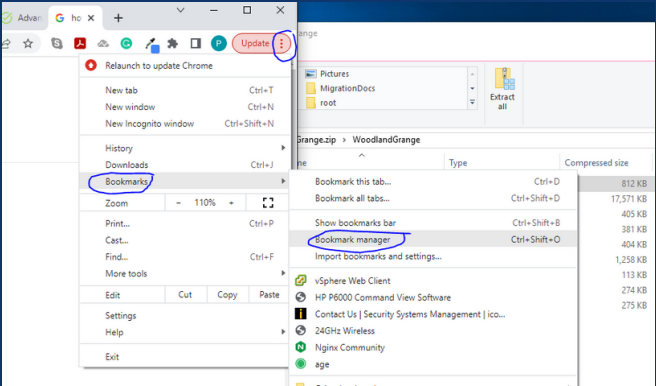
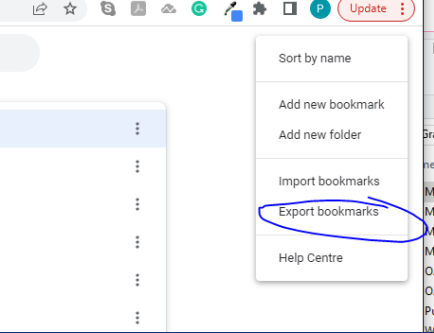
Hover over "Bookmarks" and select "Bookmarks Manager" - Click "Organize" and select "Export bookmarks to an HTML file"
Navigate to the location you would like to store the backup, name the file, and select "Save."
Didn't quite get you there?
Log a ticket via the helpdesk or give us a call — a real engineer picks it up, triaged against our published Ticket Priorities.